Generating Campaigns
Run the generation engine to create campaigns, ad groups, keywords, and RSA ads from your combinations. Monitor progress and review results.
How Generation Works
Generation is the process where WonderAds takes your keyword combinations and RSA assets and produces the full Google Ads account structure: campaigns, ad groups, keywords (with match types), Responsive Search Ads, and, when Broad match is enabled, automatic negative keywords to prevent match type overlap. See the "Negative Keywords and Match Type Protection" article for details on how negatives work.
Automatic Estimates and Cost Preview
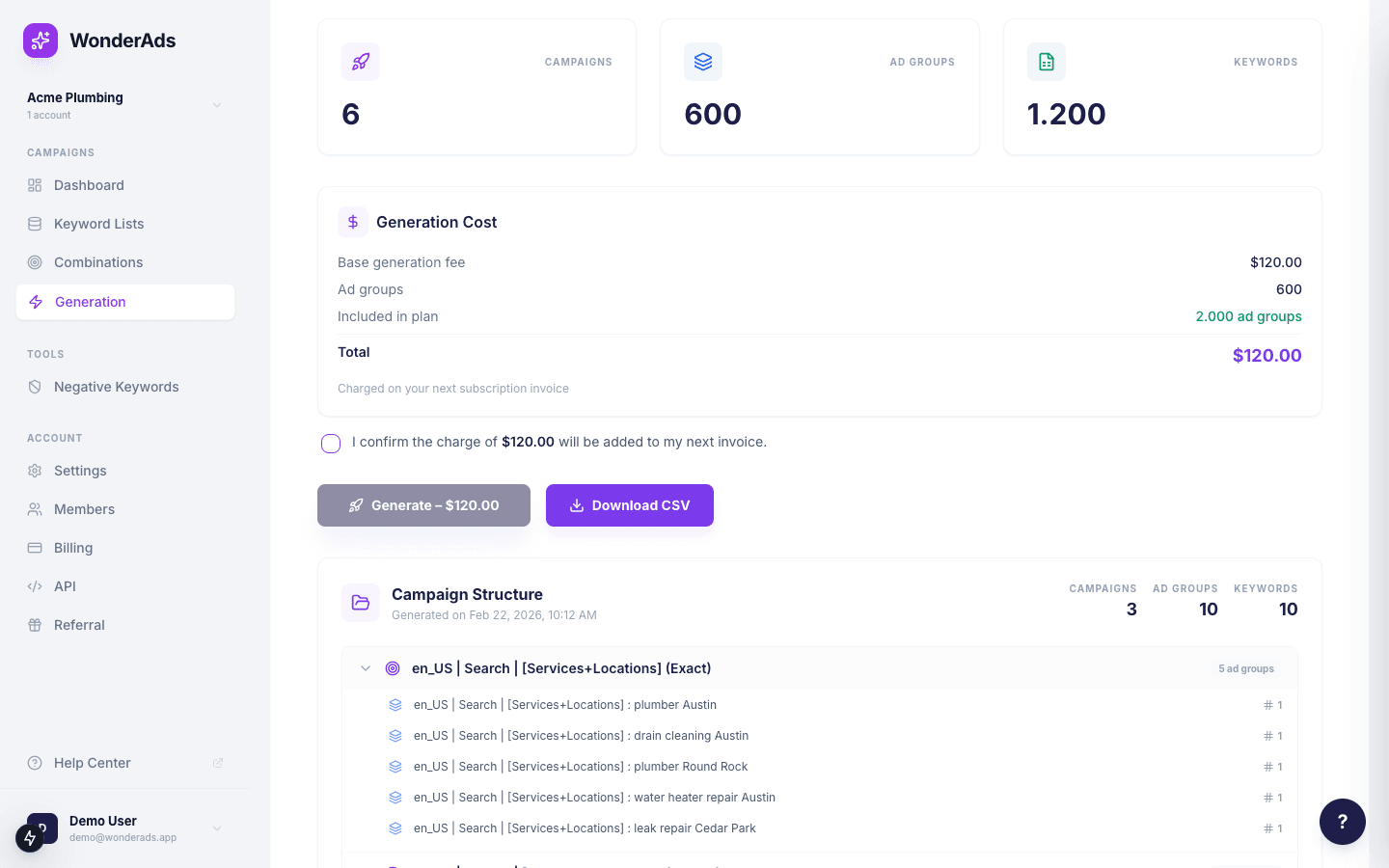
The Generation page automatically calculates an estimate as you configure your options. As soon as you select combinations, match types, or change the split strategy, the page updates to show the expected number of campaigns, ad groups, and keywords, along with the exact generation cost based on your plan. You get full price transparency before you commit.
Match Types and Split Strategy
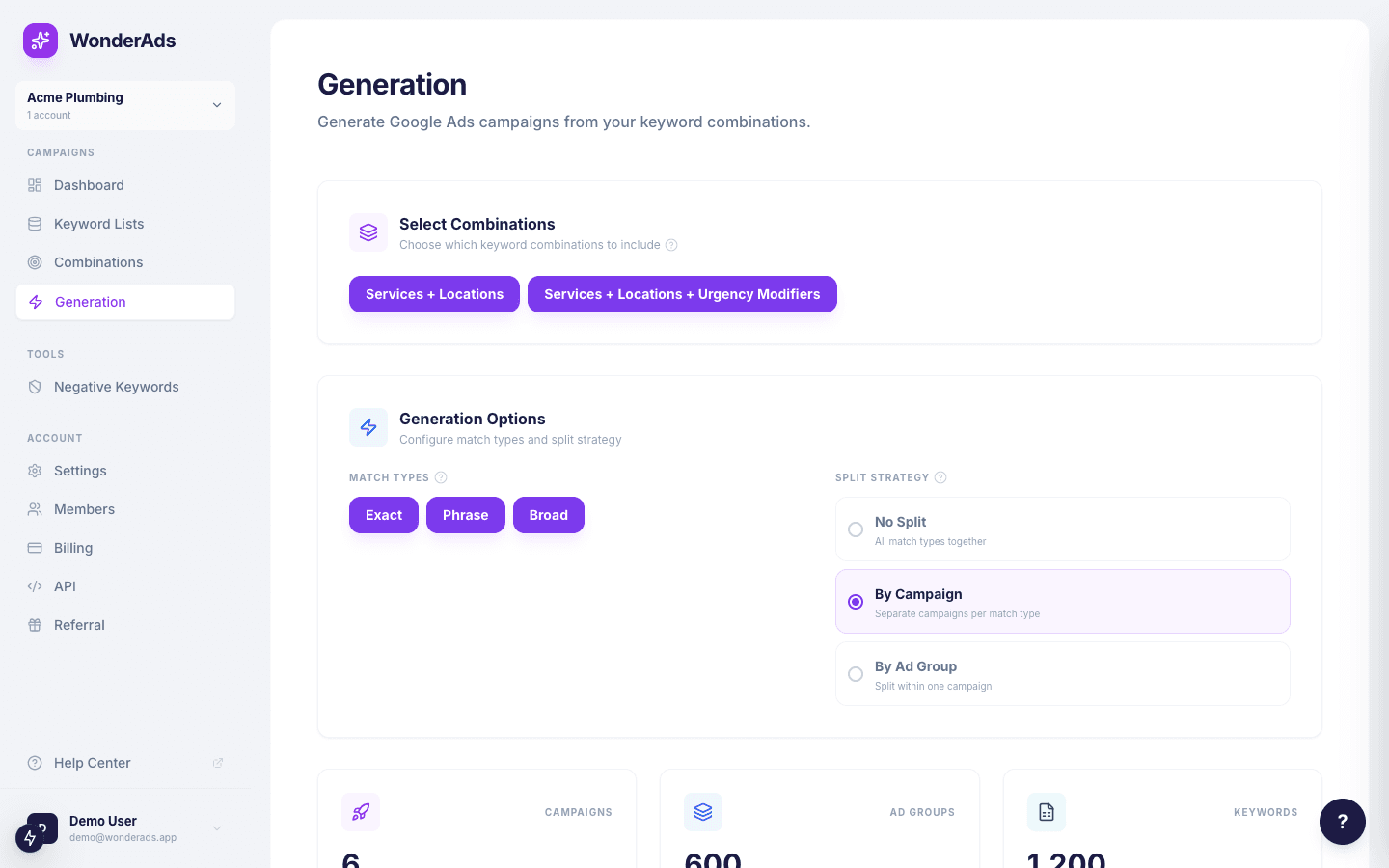
On the Generation page, you choose which match types to include and how to split them. These settings apply to this specific generation run, not as permanent defaults.
- Match Types: select Exact, Phrase, and/or Broad. Each selected type generates additional keyword rows. Broad also generates automatic negative keywords.
- Split Strategy (No Split): all match types land in one campaign and one ad group.
- Split Strategy (By Campaign): one campaign per match type. Recommended for independent budget and bid strategy control.
- Split Strategy (By Ad Group): one ad group per match type within the same campaign.
Campaign-level splitting is the most common professional setup. It lets you bid more aggressively on Exact match while keeping Broad match at a lower CPC with a separate budget.
Starting a Generation
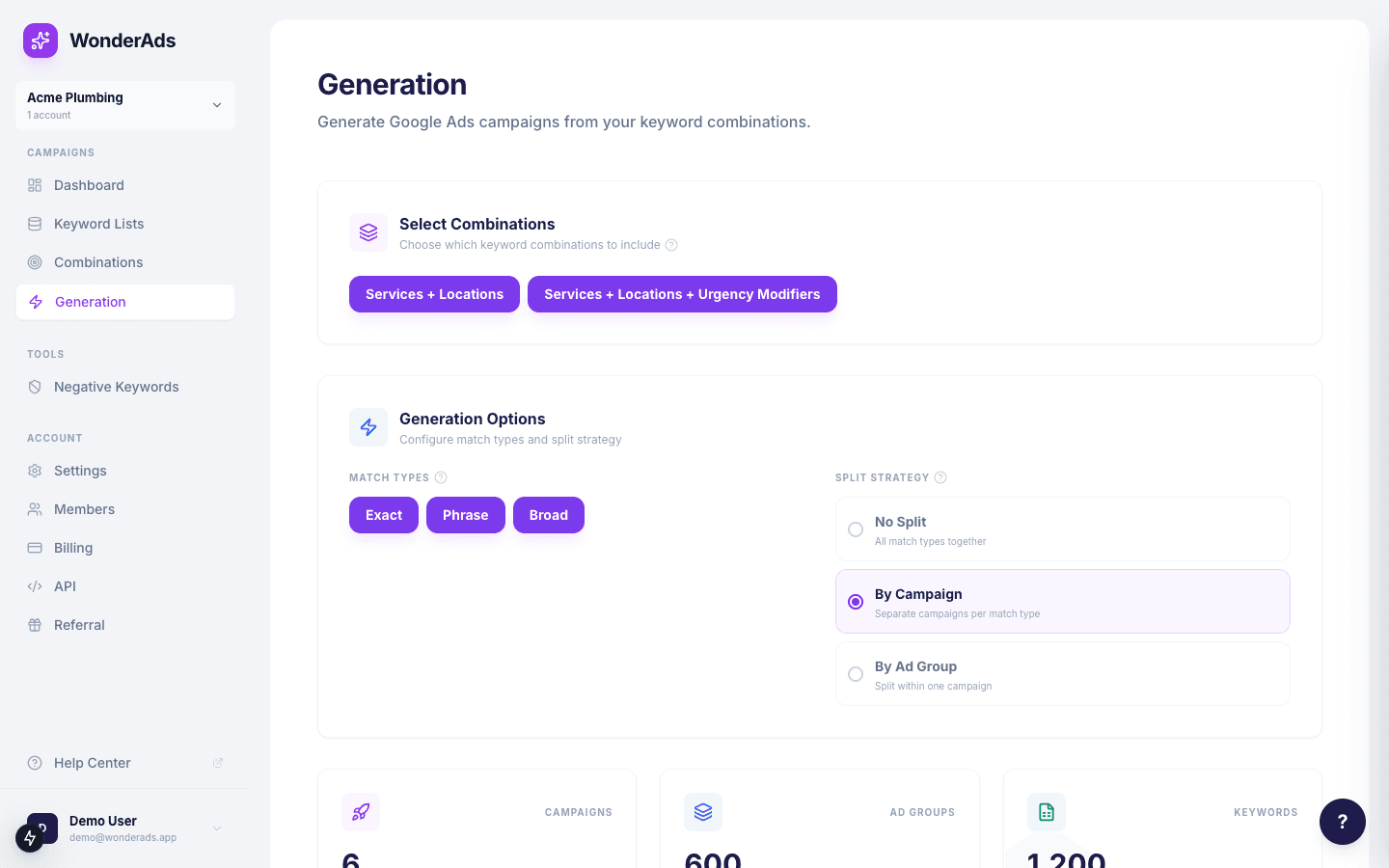
Navigate to "Generation" in the sidebar.
- Select which combinations to include in the generation.
- Choose your match types and split strategy.
- Review the automatic estimate cards showing campaigns, ad groups, and keywords.
- Review the generation cost breakdown. If there is a charge, confirm the cost by checking the confirmation checkbox.
- Click "Generate" to run the full generation.
- Once complete, download the CSV export. See the "Uploading to Google Ads" article for step-by-step instructions on importing the file via Google Ads Editor or the Google Ads web interface.
If you re-generate the same combination set within 24 hours, the generation is free. Handy when you want to iterate on your assets or settings.
Campaign Structure Preview
After a generation completes, a Campaign Structure card appears below the action buttons. It shows a collapsible tree view of all generated campaigns and their ad groups, with summary counts for campaigns, ad groups, and keywords. Click on any campaign row to expand it and see its ad groups. Campaigns with many ad groups initially show the first five; click "Show all" to reveal the rest. The naming pattern follows "{language}_{country} | Search | [List1+List2+...]" with an optional match-type suffix like "(Exact)". Ad group names include the keyword phrase for easy navigation in Google Ads Editor.