Exporting to Google Ads Editor
Export your generated campaigns as a single CSV file formatted for direct import into Google Ads Editor.
What Gets Exported
The CSV export contains all the data you need to import into Google Ads Editor: campaigns (with settings), ad groups, keywords (with match types and negative keywords), and Responsive Search Ads (with all headlines, descriptions, and pin positions).
Exporting Your Data
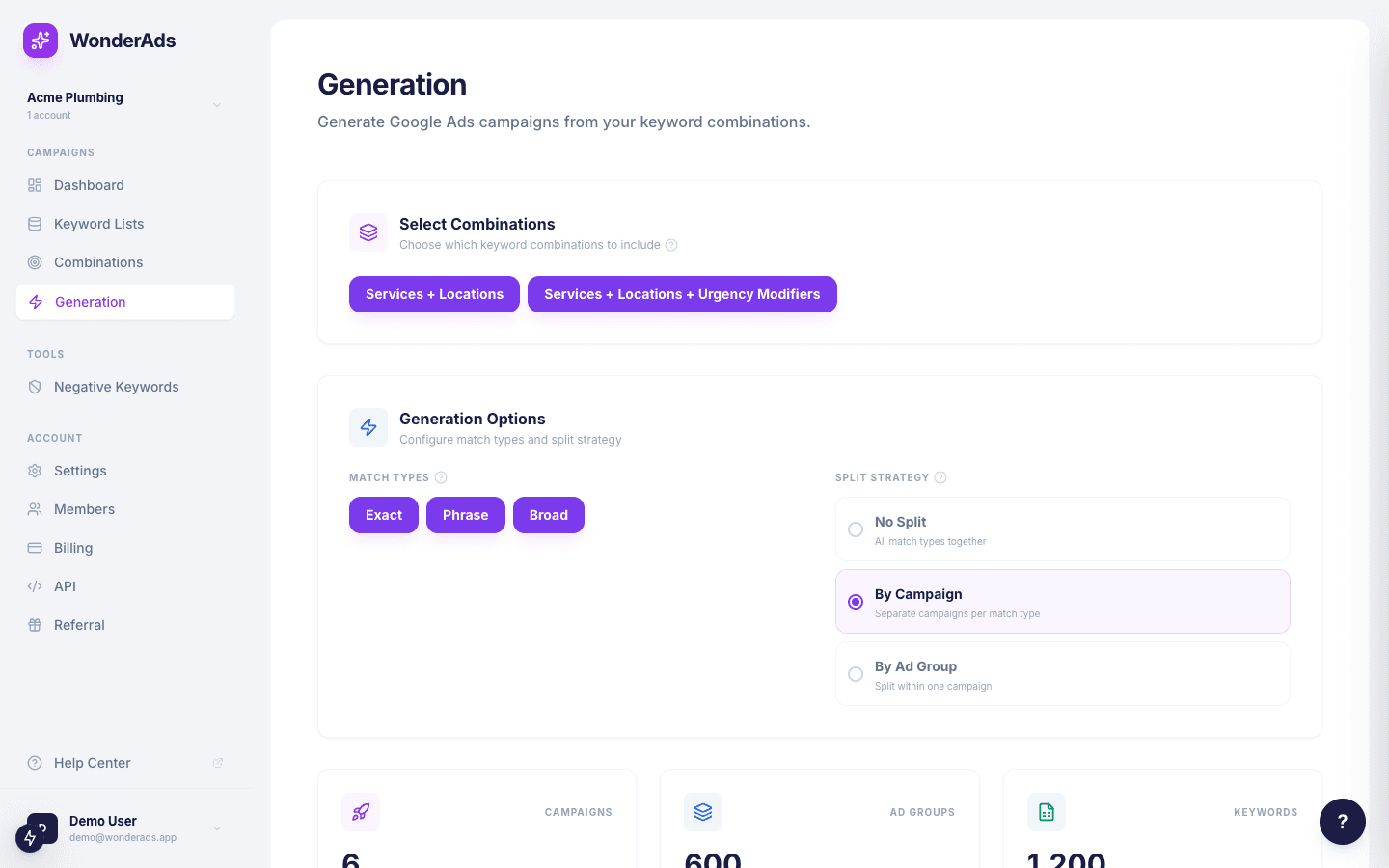
After a generation completes, click the "Export CSV" button on the Generation page.
- Ensure your generation has completed successfully.
- Click "Download CSV" to save the file to your computer.
- Import the CSV into Google Ads using either Google Ads Editor (recommended) or the Google Ads web interface. See the "Uploading to Google Ads" article for detailed instructions on both methods.
CSV Format
The CSV follows the Google Ads Editor import format with sections for campaigns, ad groups, keywords, and ads. Each row type is identified by its columns. WonderAds handles all the formatting details so you can import directly without manual adjustments.
Always review the imported data in Google Ads Editor before posting to your live account. This gives you a chance to spot-check the structure and ad copy.