Team Members and Invitations
Invite team members to your account, manage roles, and control access for collaborative campaign management.
Inviting Team Members
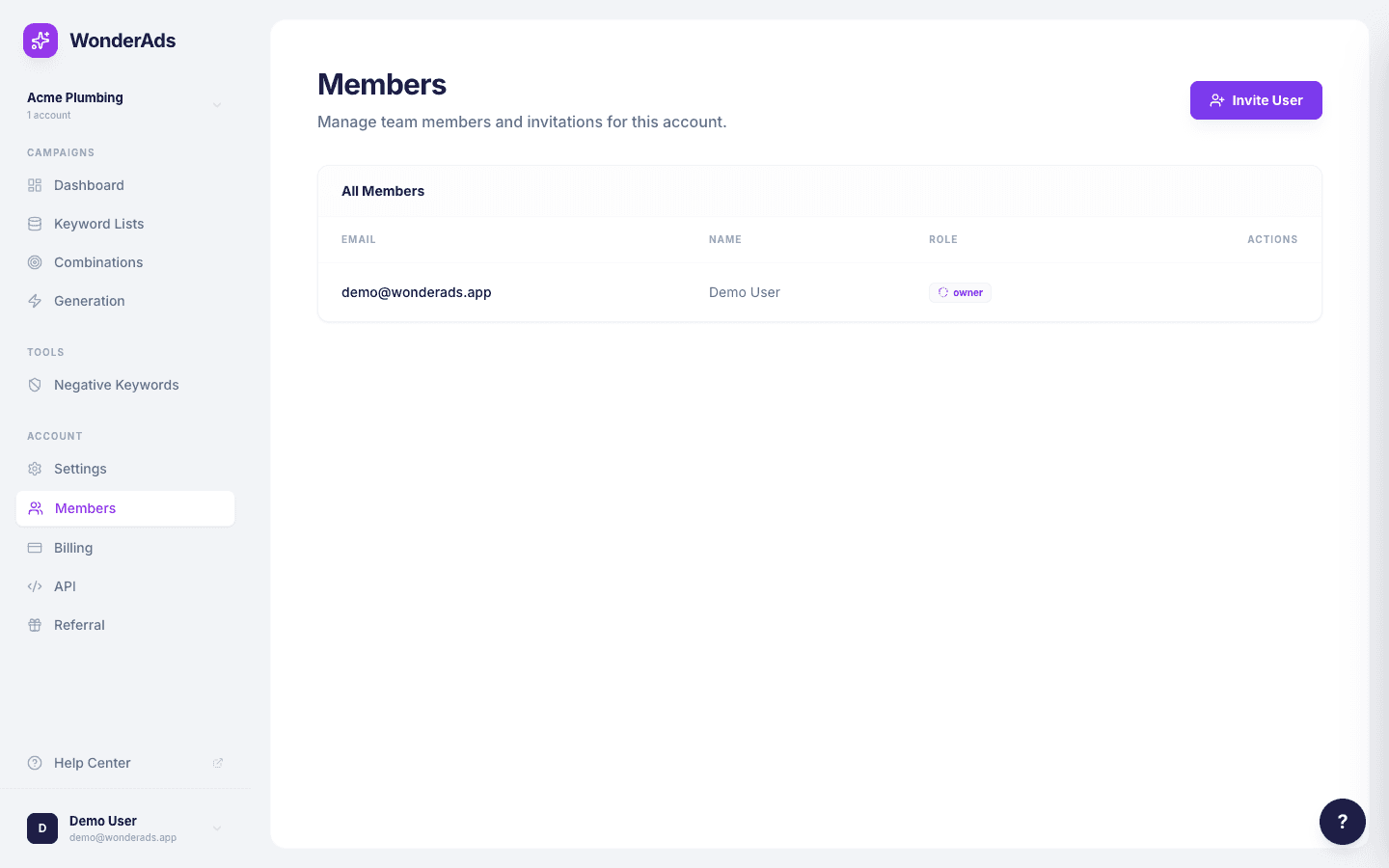
You can invite colleagues to collaborate on your WonderAds account. Each invited user gets full access to the account's keyword lists, combinations, and generation plans.
- Navigate to "Members" in the sidebar.
- Enter the email address of the person you want to invite.
- Click "Send Invitation". They will receive an email with a link to join.
- If they don't have a WonderAds account yet, the link takes them to registration.
Managing Roles
Account members can be regular members or owners. Owners can manage settings, invite/remove members, and delete the account. Regular members can create and edit keyword lists, combinations, and run generations.
You can toggle a member's owner status from the Members page. At least one owner must remain on every account.
Removing Members
Account owners can remove members from the Members page. Removed users lose access to the account immediately but retain their own WonderAds account and any other accounts they belong to.