Setting Up Combinations
Combine keyword lists to generate thousands of unique keyword permutations. Write RSA headlines and descriptions with variables that resolve per combination.
What Are Keyword Combinations?
A keyword combination ties two or more keyword lists together. WonderAds generates a cartesian product: every keyword from list 1 combined with every keyword from list 2 (and list 3, and so on). If you have 50 services and 20 locations, that creates 1,000 unique keyword combinations.
The Leading List
The first keyword list in a combination is special: it's the "leading" list. It drives the ad group structure and determines the Final URL via its keywords' landing paths. All additional lists provide extra tokens that are combined with the leading list.
Choose your most important keyword list (usually your core services or products) as the leading list.
Creating a Combination
Navigate to "Combinations" in the sidebar and click "Create Combination".
- Select your keyword lists in order. The first is the leading list.
- Write headlines (up to 15) with long, short, and default variants. Use the variable dropdown (chevron) to the right of each text field to insert variables like {{lists.services}} or {{account.name}} as chips.
- Write descriptions (up to 4) with the same variant system and variable dropdown.
- Optionally set display paths (Path 1, Path 2) for your ad URLs; each path field also has a variable dropdown.
- Optionally pin headlines or descriptions to specific positions.
- Click "Save" to create the combination.
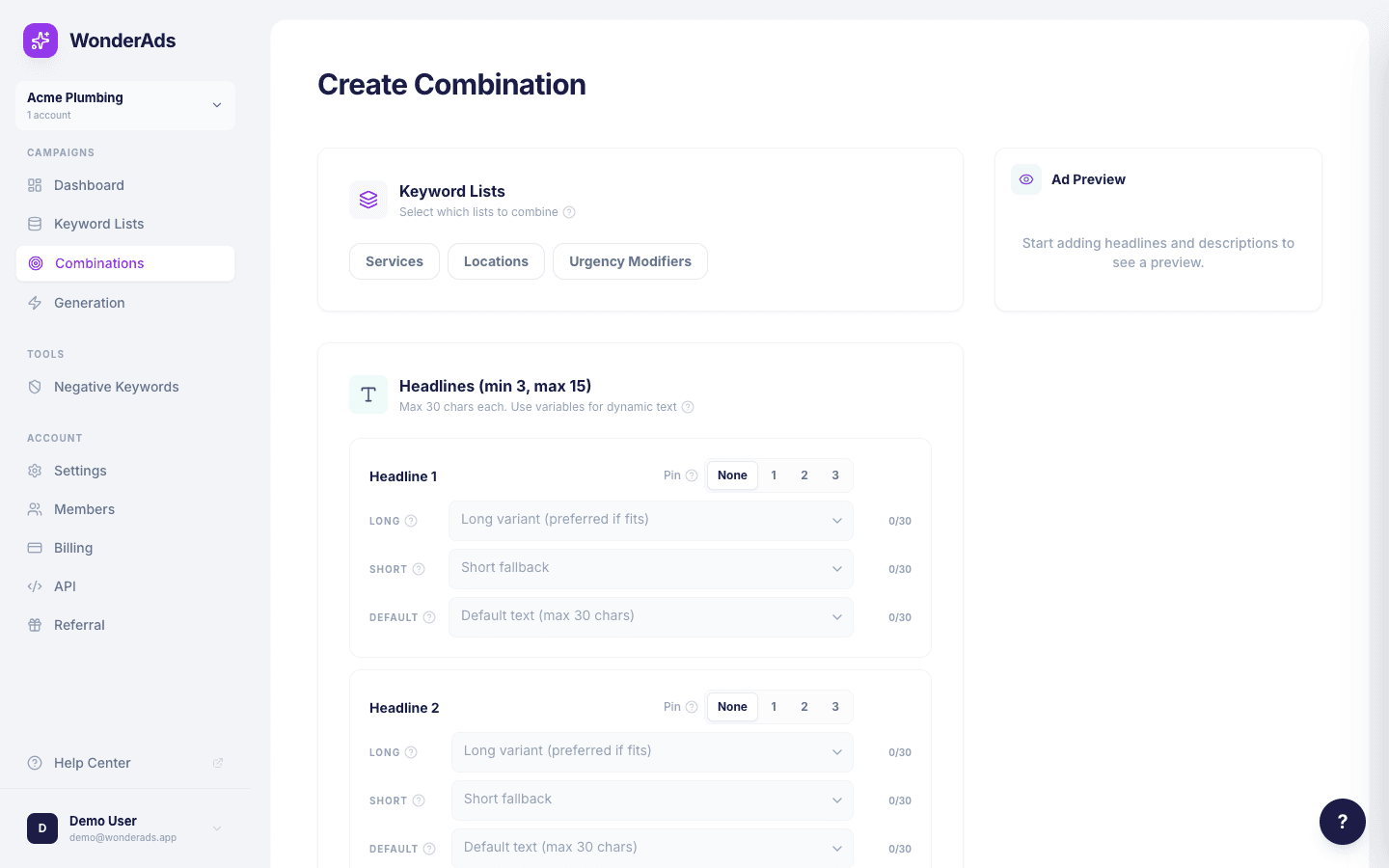
Inserting Variables
Every headline, description, and display path field has a dropdown on the right (chevron icon) that lists all available variables. Click the chevron to open it, then click a variable to insert it into the field as a chip. Variables are grouped into "Account" (name, domain, phone, infos, ctas) and "Keyword lists" (one entry per selected list, using the list name as slug). You can also type variable syntax manually, e.g. {{ account.name }}. Chips can be removed using the small × on the chip or by placing the cursor before the chip and pressing Backspace.
RSA Asset Variants
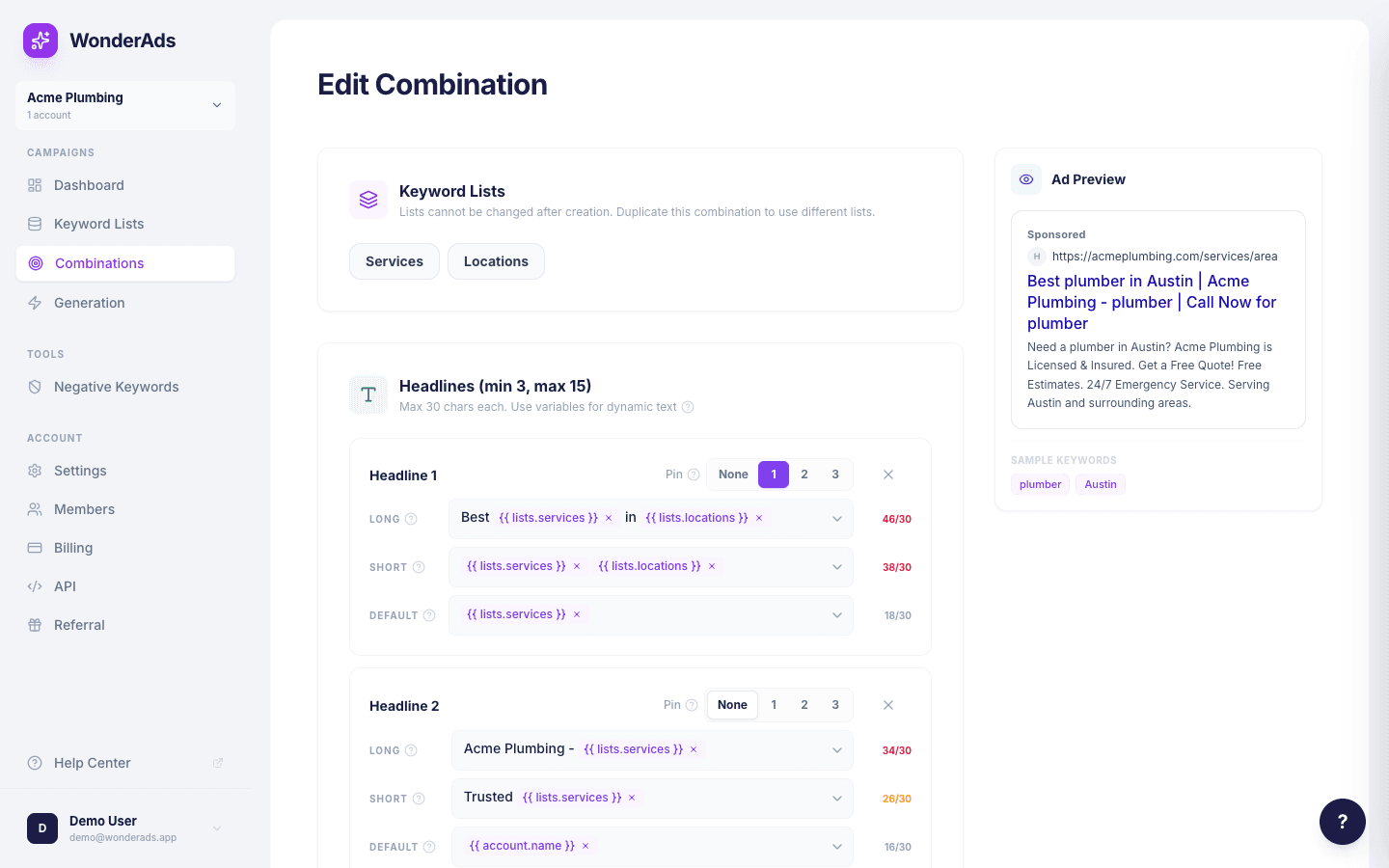
Each headline and description can have three variants: long, short, and default. WonderAds tries the long variant first. If it exceeds character limits (30 for headlines, 90 for descriptions), it falls back to short, then default, then truncates. Your ads always fit while staying as relevant as possible.
Apply Template
The "Apply template" button in the top-right corner of the combination form auto-fills headlines, descriptions, and display paths from a default template. Select at least one keyword list first, then click the button. The template uses your keyword list variables, account infos, and CTAs to build a ready-to-use RSA structure.
- Headline 1 (pinned position 1). Contains all selected keyword list variables in order (e.g. {{lists.services}} {{lists.locations}}).
- Additional headlines. One per account info (unpinned) and one per account CTA (pinned position 3).
- Description 1 (pinned position 1). Keyword expression followed by your first account infos, separated by dashes.
- Description 2 (pinned position 2). Remaining account infos and first CTA, separated by dashes.
- Path 1: first keyword list variable. Path 2: second keyword list variable (if available).
- Short and default variants are auto-generated as fallbacks. If the long variant exceeds character limits, the renderer falls back to shorter versions with fewer parts.
The template overwrites any existing headlines, descriptions, and paths in the form. You can edit the generated assets before saving. The template requires at least one keyword list to be selected.
Screenshot of the Apply template button on the combination form
Screenshot Instructions
What to Capture
Specific area: capture the top of the combination form showing the "Apply template" button in the top-right corner, aligned with the page heading
Filename
apply-template.png
Save to Folder
public/help/combinations/
Keyword List Selection and Duplicate
The keyword lists chosen for a combination cannot be changed after the combination is created. This keeps generation and variable resolution consistent. If you need a variant with different lists (or a different order), use the copy icon on the Combinations overview to duplicate the combination. The duplicate keeps the same list selection, paths, and RSA assets; you can then edit paths and assets on the new combination as needed. To use a different set of lists, create a new combination from scratch.