Creating Keyword Lists
Organize your keywords into themed lists with optional synonyms and landing paths. Keyword lists are the building blocks for your campaign structure.
What Are Keyword Lists?
Keyword lists are named collections of related keywords. Think of them as themed groups. A "Services" list might contain "plumber", "electrician", "carpenter", while a "Locations" list might contain "London", "Manchester", "Birmingham".
Creating a Keyword List
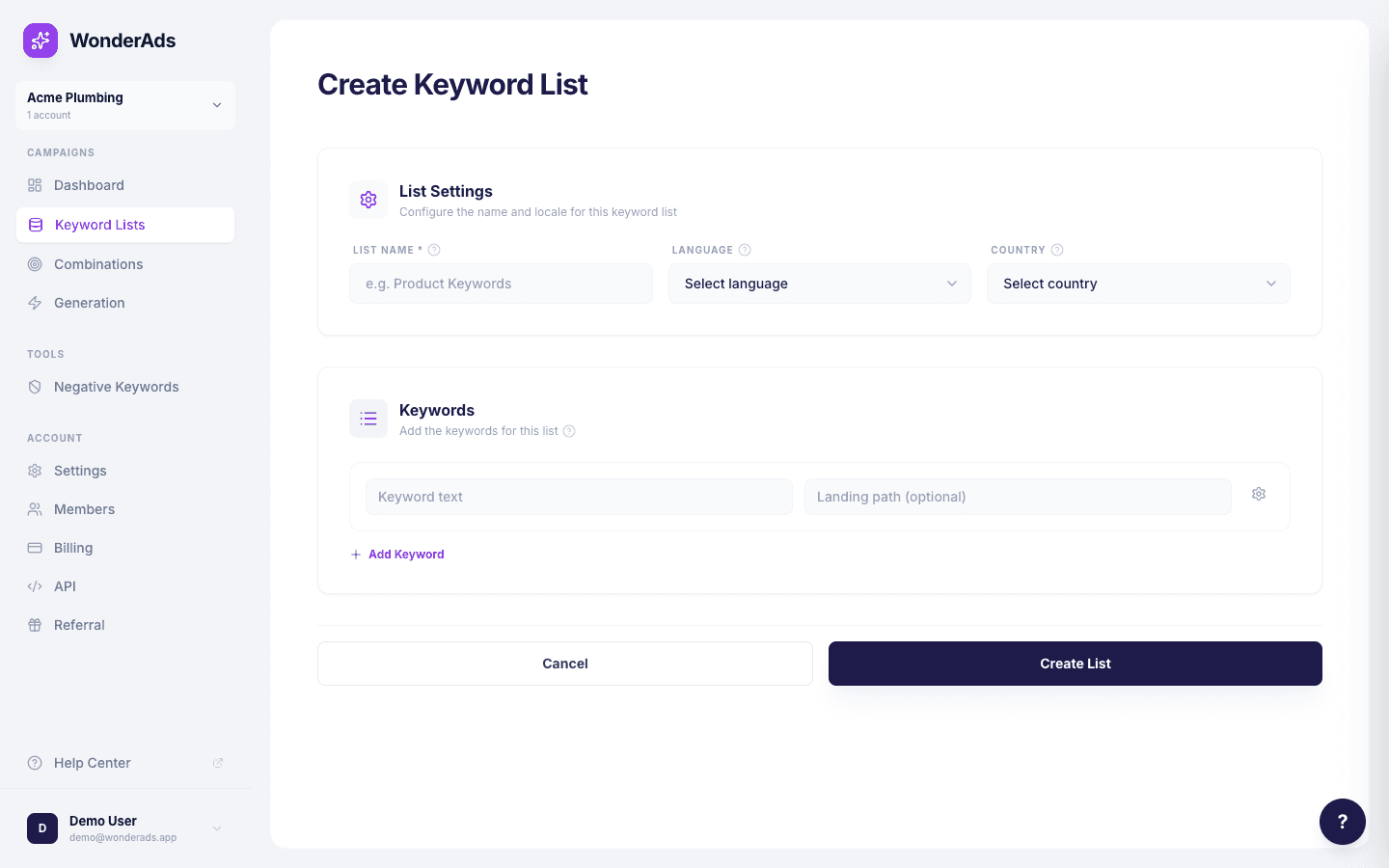
Navigate to "Keyword Lists" in the sidebar and click "Create Keyword List".
- Give your list a descriptive name (e.g., "Services", "Locations", "Modifiers").
- Add keywords one by one. For each keyword, you can optionally set a landing path.
- Optionally add synonyms to any keyword. Synonyms expand into additional keyword rows in the same ad group.
- Click "Save" to create the list.
Landing Paths
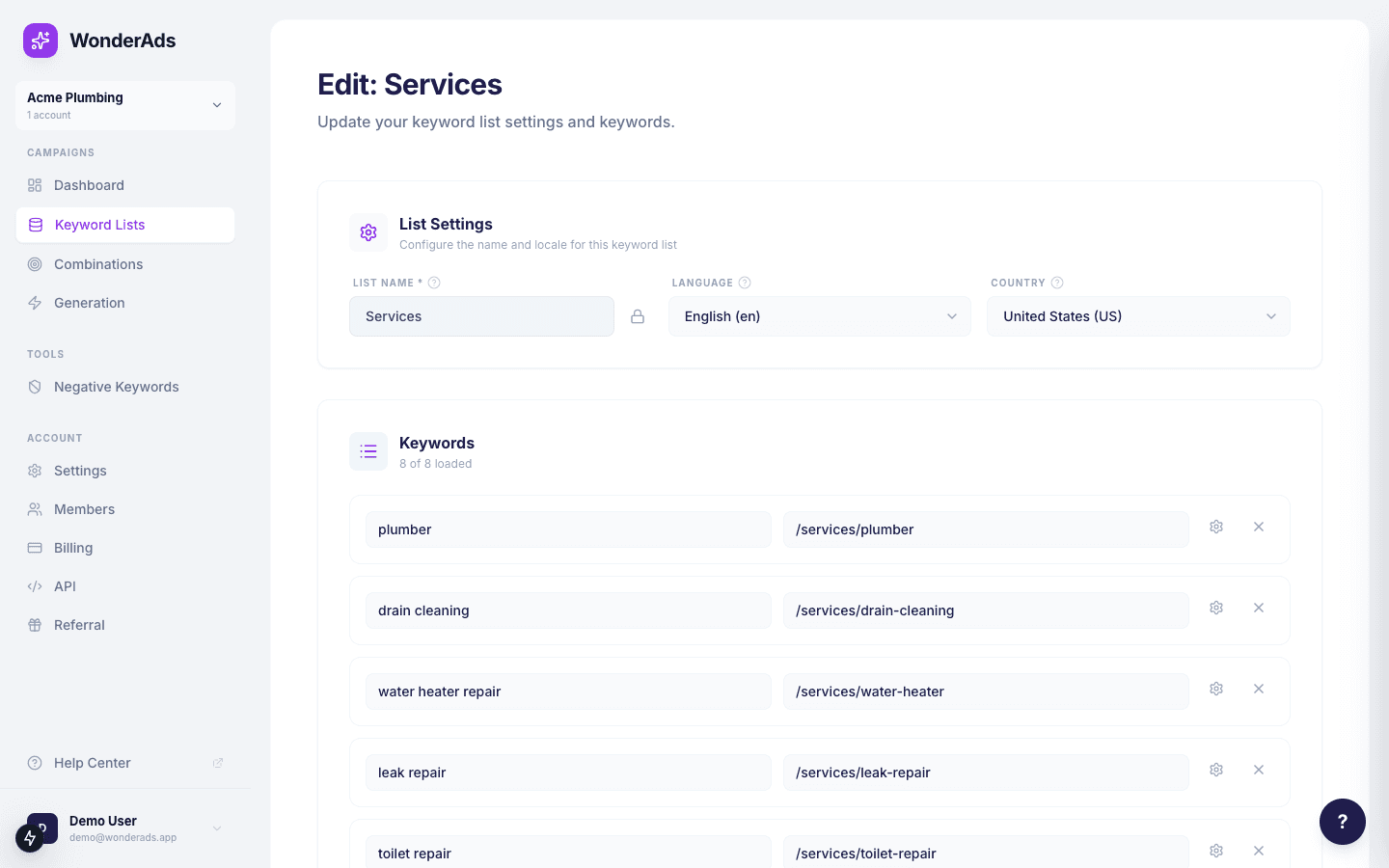
Each keyword can have an optional landing path. This is appended to your account domain to create the Final URL for that keyword. For example, if your domain is "example.com" and the landing path is "/services/plumber", the Final URL becomes "example.com/services/plumber".
Landing paths from the leading keyword list (the first list in a combination) drive the Final URL for each ad group.
Synonyms
Synonyms are alternative versions of a keyword that expand into additional keyword rows within the same ad group. For example, "plumber" might have synonyms "plumbing service" and "plumbing expert". All three appear as keywords in the same ad group and share the same ads.
List Name and Duplicate
After a keyword list is created, its name is locked to protect variable slugs (e.g. {{lists.services}}) used in combinations and RSA assets. To change the name, use "Unlock to edit name" on the list edit page. You will see a warning that changing the name may affect combinations and ad copy that reference this list. Alternatively, use the copy icon on the Keyword Lists overview to duplicate the list, then unlock and rename the copy. The duplicate includes all keywords and synonyms.