Managing Your Account
Set up your account with brand information, domain, phone number, information snippets, and calls-to-action that become variables for your ad texts.
Creating an Account
Every WonderAds workspace starts with an account. An account holds all your keyword lists, combinations, settings, and generation plans. You can belong to multiple accounts and switch between them from the sidebar. When you create a new account, you go through a short onboarding flow that collects company details, budget and targeting, content snippets (infos and CTAs), and optional profile information. Your progress is saved after each step, so you can leave and resume later. If you do not have an active subscription, clicking "Create account" takes you to the subscription page to choose a plan; after payment, your account is created and you land on the dashboard.
- Click "Create Account" in the sidebar (under the account switcher) or navigate to /accounts and click "Create Account".
- Step 1, Company: enter account name (required), domain, and optional phone.
- Step 2, Budget: set monthly budget, target CPA, and estimated conversion rate (optional).
- Step 3, Targeting: choose default language and country for your campaigns.
- Step 4, Infos & CTAs: add at least 3 infos (e.g. trust signals) and 1 CTA (max 25 characters each).
- Step 5, Optional: industry, number of employees, and your position. Click "Create account" to finish. If you have no active subscription, you are taken to the subscription page; after checkout, your account is created and you land on the dashboard. If you have reached your plan's account limit, you are taken to the subscription page to upgrade.
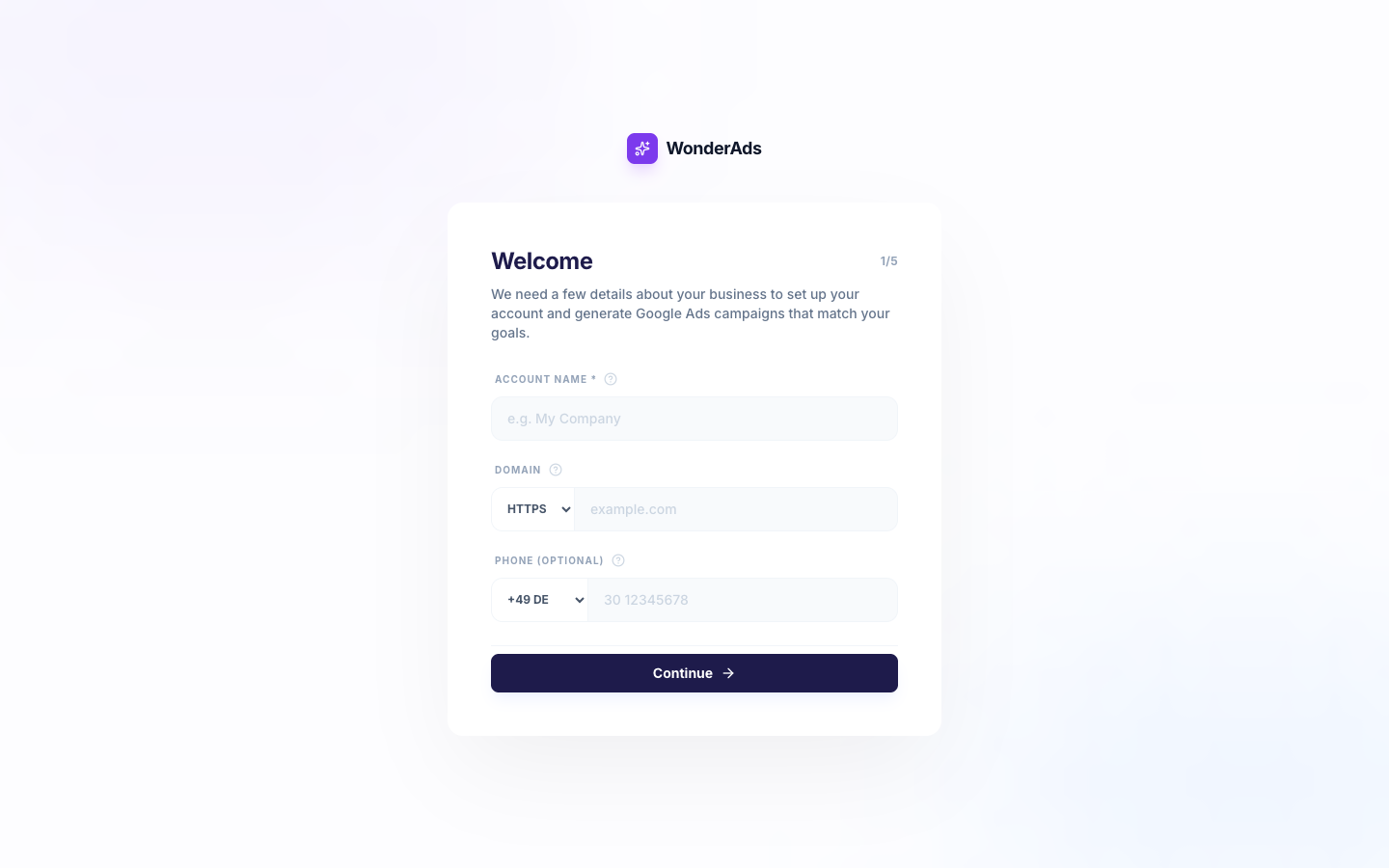
Account Information
Your account stores brand-level information that is used as variables in your ad texts. This includes your business name, domain, phone number, information snippets (like unique selling points), and calls-to-action.
All account fields become usable as variables in your ad headlines and descriptions. For example, {{account.name}} inserts your business name, and {{account.domain}} inserts your domain.
Switching Accounts
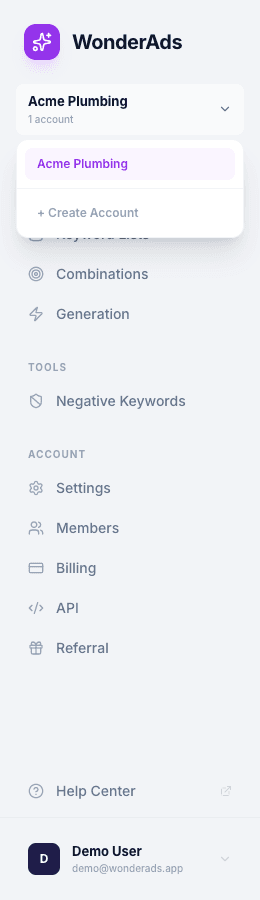
If you belong to multiple accounts, use the account switcher dropdown at the top of the sidebar. Click any account name to switch to that workspace. All keyword lists, combinations, and generation plans are scoped to the active account.
Your Profile
Your profile page lets you manage your personal information and security settings. Access it from the user dropdown menu at the bottom of the sidebar by clicking "Profile".
You can update your display name and email address. If you need to delete your account entirely, the profile page also includes a "Delete Account" section at the bottom. This action is permanent and removes all your data.