Google Ads Campaign Launch Checklist: From Zero to Live in 2026
A step-by-step checklist to launch your first Google Ads Search campaign the right way. Covers account setup, targeting, keywords, ads, and conversion tracking.
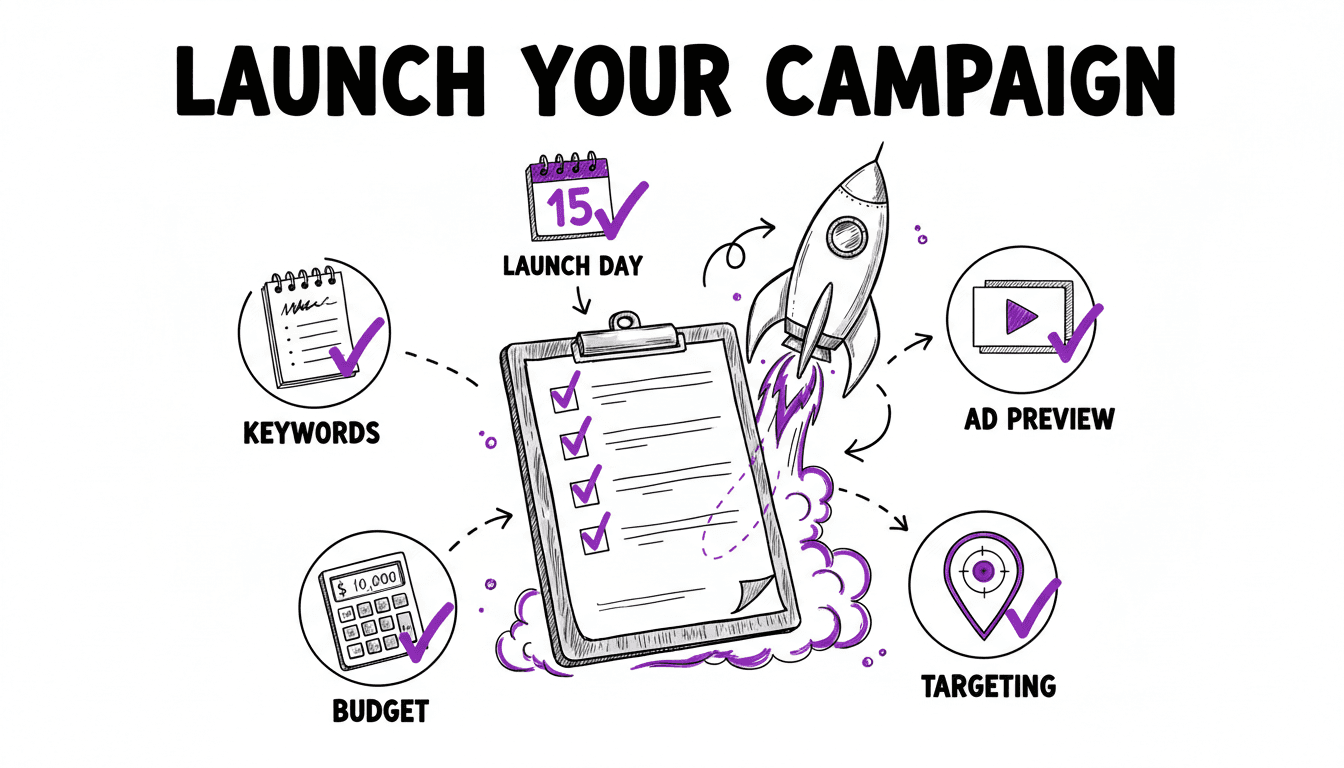
Why You Need a Launch Checklist
Launching a Google Ads campaign is not complicated. It is, however, easy to miss a step that costs you money. A forgotten conversion action means you cannot measure results. A missing negative keyword list means you pay for irrelevant clicks from day one. A wrong location setting means your ads show on a different continent.
Most wasted ad spend does not come from bad strategies. It comes from small oversights during setup. This checklist walks you through every step so nothing gets missed.
Step 1: Account and Billing Setup
Before you create anything, make sure the basics are in place:
- Google Ads account. Create one at ads.google.com. One account per business is the standard.
- Billing information. Add a payment method. Google will not serve ads without it.
- Time zone and currency. Set these during account creation. You cannot change them later.
- Account access. If you work with a team or agency, invite them with the right permission level (Admin, Standard, or Read-Only).
Step 2: Conversion Tracking
Set up conversion tracking before you launch, not after. Without conversion data, you cannot measure whether your campaigns actually generate business results.
What to Track
- Primary conversions. The actions that directly represent business value: purchases, form submissions, phone calls, sign-ups.
- Secondary conversions. Supporting actions that indicate intent: add-to-cart, page views of key pages, PDF downloads.
How to Set It Up
- In Google Ads, go to Goals > Conversions > Summary
- Click New conversion action
- Choose the source: website, app, phone calls, or import
- For websites, install the Google Ads tag (gtag.js) or use Google Tag Manager
- Define the conversion value, count method (every vs. one per click), and attribution window
Step 3: Campaign Settings
Create a new Search campaign and configure these settings:
Campaign Name
Use a consistent naming convention. A good pattern includes the market, campaign type, and keyword theme:
en_DE | Search | [Plumbing+Locations]
This tells you at a glance: English language, Germany, Search campaign, targeting plumbing services combined with locations.
Networks
- Search Network. Keep this on. This is your primary channel.
- Search Partners. Test it, but monitor separately. Search Partners can have lower conversion rates.
- Display Network. Turn this off for Search campaigns. Display has different intent and should be run as a separate campaign.
Budget
Set a daily budget that you are comfortable spending every day. Google may spend up to 2x your daily budget on some days, but will not exceed your monthly limit (daily budget × 30.4).
Start conservative. You can always increase budget once you see conversions coming in at a sustainable cost.
Bidding Strategy
For a brand new campaign with no conversion data, start with Manual CPC. You know your business, your margins, and what a click is worth to you. Google does not.
- Manual CPC (recommended). Full control over every bid. Calculate your Max CPC using the formula below and set bids that reflect the actual value of each keyword.
- Maximize Clicks (with caution). Only if you need traffic volume quickly. Always set a Max CPC limit to prevent Google from overbidding. Remember: Google will spend your entire budget, even on low-quality clicks.
Avoid switching to automated bidding strategies (Target CPA, Maximize Conversions) until you have at least 30 conversions per month and a well-structured account with strong negative keyword lists. Google will recommend automated strategies from day one, because they tend to increase spend. Ignore those recommendations until you have the data and structure to evaluate whether they actually improve your results.
Step 4: Targeting
Locations
- Target only the areas where you serve customers.
- Use "Presence: People in or regularly in your targeted locations" instead of the default "Presence or interest", which includes people merely searching about your location.
- Exclude locations where you do not operate.
Languages
Match the language of your ads to the language of your target audience. If you serve multilingual markets, create separate campaigns per language.
Devices
All devices are targeted by default. Keep it that way initially, then adjust bid modifiers once you have data showing which devices convert best.
Step 5: Ad Group Structure
This is where most advertisers make their biggest mistake. They create too few ad groups with too many loosely related keywords.
The principle is simple: each ad group should contain tightly related keywords that share the same intent and deserve the same ad. If two keywords need different ad copy or different landing pages, they belong in different ad groups.
Good Structure
- Ad group "Emergency Plumber London" → keywords: emergency plumber london, plumber emergency london, london emergency plumber
- Ad group "Plumber South London" → keywords: plumber south london, south london plumber
Bad Structure
- Ad group "Plumbing" → keywords: emergency plumber london, boiler repair, drain unblocking, bathroom renovation. Too many different intents.
For more on this, read our guide on Google Ads account structure.
Step 6: Keywords
For each ad group, add your target keywords with the right match types:
- Exact match
[emergency plumber london]. Triggers only for this specific search (or very close variants). Highest control, highest conversion rate. - Phrase match
"emergency plumber london". Triggers when the search includes this phrase. Good for capturing long-tail variations. - Broad match
emergency plumber london. Triggers for searches Google considers related. Lowest control, highest risk of irrelevant spend.
Start with Exact and Phrase match. These give you control over which searches trigger your ads. Add Broad match only later, in a separate campaign with a limited budget and strong negative keyword lists. Google will recommend Broad match from the start because it maximizes impressions and spend. At launch, precision is more important than reach.
For a deep dive, see our guide on match types.
Skip the Manual Setup
WonderAds generates your entire campaign structure: ad groups, keywords in all match types, negative keywords, and tailored RSAs, from keyword lists you define. Export a single CSV and import it into Google Ads Editor.
Step 7: Write Your Ads
Each ad group needs at least one Responsive Search Ad (RSA). Provide:
- Up to 15 headlines (30 characters each). Include the keyword, benefits, CTAs, trust signals.
- Up to 4 descriptions (90 characters each). Expand on your value proposition.
- Display paths (15 characters each). Reinforce the keyword theme (e.g.,
/plumber/london). - Final URL. The landing page matching the keyword intent.
Write each headline as an independent statement that works on its own. Google will combine them dynamically.
For headline formulas and RSA best practices, see our ad copy guide.
Step 8: Negative Keywords
Add negative keywords before you launch. Do not wait until after wasting money on irrelevant clicks.
Starter Negative Keywords
Build a list of universally irrelevant terms:
- "free", "cheap", "discount" (unless you are a budget brand)
- "jobs", "career", "salary", "hiring"
- "meaning", "definition", "what is", "wiki"
- "DIY", "how to", "tutorial" (unless you sell courses)
- "review", "reddit", "forum"
Match Type Protection
If you run the same keyword in multiple match types across separate campaigns, add negatives to prevent overlap. Your Broad campaign needs Negative Exact and Negative Phrase versions of your Exact match keywords.
Read our full negative keywords guide for strategies and tools.
Step 9: Ad Extensions
Extensions add extra information to your ads and increase their visual footprint. Set up at least these:
- Sitelinks. Links to key pages (About, Contact, Products, Pricing).
- Callouts. Short feature highlights (Free Shipping, 24/7 Support, No Contract).
- Structured Snippets. Lists of products, services, or brands.
- Call extension. Your phone number (especially important for local businesses).
- Location extension. Link your Google Business Profile.
Extensions do not cost extra. They only show when Google predicts they will improve performance.
Step 10: Final Review
Before clicking "Publish", go through this final check:
- Conversion tracking is active and firing correctly
- Campaign targets the right locations (with "Presence" only)
- Budget is set to a level you are comfortable with
- Bidding strategy matches your goals and data availability
- Each ad group has tightly grouped keywords
- Keywords use appropriate match types
- Each ad group has at least one RSA with 10+ headlines
- Final URLs point to relevant, working landing pages
- Display paths reinforce the keyword theme
- Negative keyword list is applied
- Ad extensions are set up
- Campaign status is set to "Paused" (so you can review before going live)
Once everything checks out, switch the campaign status to "Enabled" and monitor closely for the first 48-72 hours.
After Launch: The First Two Weeks
Launching is not the finish line. It is the starting line. In the first two weeks:
- Days 1-3. Monitor impression share, CTR, and average CPC. Make sure ads are actually serving.
- Days 3-7. Review the Search Terms Report. Add negative keywords for irrelevant queries.
- Week 2. Check conversion tracking is recording correctly. Adjust bids on underperforming keywords.
Do not make dramatic changes in the first week. Google's algorithms need time to learn. Resist the urge to pause keywords after a single day of low performance.
Related Articles
Launch Better Campaigns, Faster
WonderAds takes you from keyword lists to fully structured, Google Ads Editor-ready campaigns in minutes. No manual CSV formatting, no copy-paste mistakes, no missed steps.
Get Started with WonderAdsRelated Articles
How to Turn Off Auto-Applied Recommendations in Google Ads (2026)
Google Ads can change keywords, bids and ads on its own. Learn what auto-applied recommendations do, when they help, and how to switch them off.
Read article9 Best Google Ads Campaign Builders in 2026 (Compared)
We tested the top Google Ads campaign builder tools on the market. Here is our honest comparison with features, pricing, pros and cons to help you pick the right one.
Read articleGoogle Ads Account Structure: How to Build Your Account the Right Way
Learn the optimal Google Ads account structure with campaigns, ad groups, and keywords. Discover how proper organization lowers your CPC and improves Quality Score.
Read article