How to Import Campaigns Into Google Ads Editor: A Complete Guide
Learn how to use Google Ads Editor to import campaigns via CSV. Understand the file format, required columns, and how to avoid common import errors.
What Is Google Ads Editor?
Google Ads Editor is Google's free desktop application for managing Google Ads campaigns offline. It lets you download your account, make bulk changes, review them, and upload everything back to Google Ads.
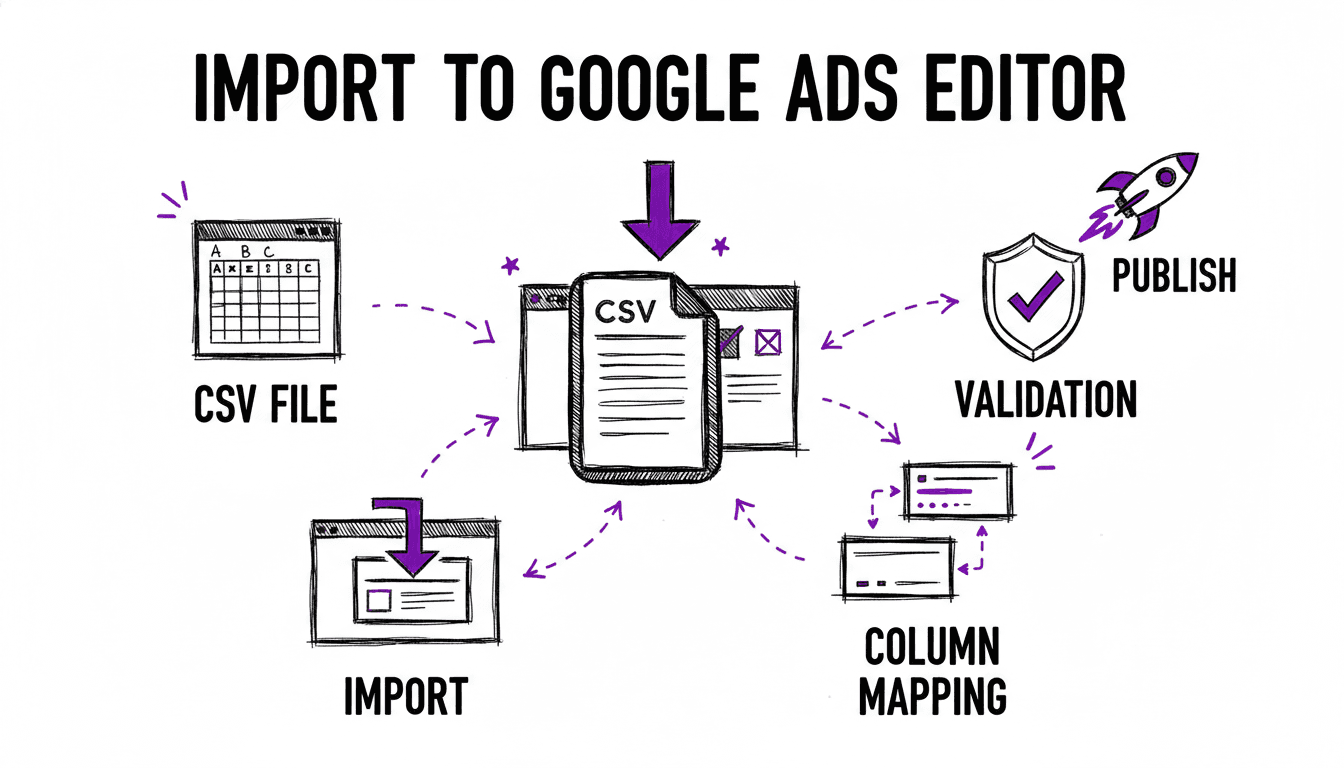
The most powerful feature, and the one most advertisers underuse, is CSV import. Instead of creating campaigns, ad groups, keywords, and ads one by one in the web interface, you can build your entire campaign structure in a spreadsheet and import it in one go.
This is how professionals build large-scale campaigns. No clicking through forms for hours. No copy-paste errors. No forgotten settings. One file, one import, done.
Installing Google Ads Editor
- Download Google Ads Editor from ads.google.com/intl/en/home/tools/ads-editor/
- Install it on your computer (available for Windows and Mac)
- Sign in with your Google Ads account credentials
- Click Get recent changes > All campaigns to download your current account
Google Ads Editor works offline. You make changes locally, review them, and then post them to your account when ready.
Understanding the CSV Format
Google Ads Editor expects a specific CSV format with defined column headers. The file is organized in sections (campaigns, ad groups, keywords, and ads) identified by the values in each row.
Here are the key columns:
Campaign Columns
| Column | Description | Example |
|---|---|---|
| Campaign | Campaign name | en_DE | Search | [Services+Locations] |
| Campaign Type | Always "Search" for Search campaigns | Search |
| Campaign Status | "Paused" or "Enabled" | Paused |
| Budget | Daily budget in your account currency | 32.26 |
| Budget type | Always "Daily" | Daily |
| Labels | Semicolon-separated labels for organization | Services;Locations |
Ad Group Columns
| Column | Description | Example |
|---|---|---|
| Campaign | Parent campaign name | en_DE | Search | [Services+Locations] |
| Ad group | Ad group name | en_DE | Search | [Services+Locations] : plumber london |
| Ad Group Status | "Enabled" (standard) | Enabled |
| Max CPC | Maximum cost per click for this ad group | 2.00 |
| Labels | Semicolon-separated labels | plumber;london |
Keyword Columns
| Column | Description | Example |
|---|---|---|
| Campaign | Parent campaign name | en_DE | Search | [Services+Locations] |
| Ad group | Parent ad group name | en_DE | Search | [Services+Locations] : plumber london |
| Keyword | The keyword text with match type formatting | [plumber london] |
| Criterion Type | Match type identifier | Exact |
| Status | "Enabled" (standard) | Enabled |
Match Type Formatting
Keywords in the CSV use specific formatting to indicate match type:
- Exact match:
[plumber london], wrapped in square brackets. - Phrase match:
"plumber london", wrapped in quotes. - Broad match:
plumber london, no wrapping. - Negative Exact:
[plumber london]with Criterion Type "Negative Exact". - Negative Phrase:
"plumber london"with Criterion Type "Negative Phrase".
The Criterion Type column must match the formatting: Exact, Phrase, Broad, Negative Exact, or Negative Phrase.
RSA Ad Columns
Responsive Search Ads have the most columns:
| Column | Description | Example |
|---|---|---|
| Campaign | Parent campaign name | en_DE | Search | [Services+Locations] |
| Ad group | Parent ad group name | en_DE | Search | [Services+Locations] : plumber london |
| Status | "Enabled" | Enabled |
| Final URL | Landing page URL | https://example.com/plumber-london |
| Path 1 | Display path segment 1 (max 15 chars) | plumber |
| Path 2 | Display path segment 2 (max 15 chars) | london |
| Headline 1–15 | Up to 15 headlines (max 30 chars each) | Emergency Plumber London |
| Headline 1 position–15 position | Pin position (1, 2, or 3) or empty | 1 |
| Description 1–4 | Up to 4 descriptions (max 90 chars each) | Licensed plumbers available 24/7... |
| Description 1 position–4 position | Pin position (1, 2, 3, or 4) or empty | 1 |
Building a CSV File
File Structure
A complete CSV file contains rows for all four entity types. Each row type is distinguished by which columns are populated:
- Campaign rows: Campaign, Campaign Type, Campaign Status, Budget, Labels.
- Ad group rows: Campaign, Ad group, Ad Group Status, Max CPC, Labels.
- Keyword rows: Campaign, Ad group, Keyword, Criterion Type, Status.
- Ad rows: Campaign, Ad group, Status, Final URL, Path 1/2, Headlines, Descriptions.
All rows share the same columns, and unused columns are simply left empty. This is why the CSV file has many empty cells. That is expected and correct.
Example CSV
Here is a minimal example with one campaign, one ad group, one keyword, and one ad:
Campaign,Ad group,Keyword,Criterion Type,Campaign Type,Campaign Status,Ad Group Status,Status,Budget,Max CPC,Final URL,Path 1,Path 2,Headline 1,Headline 2,Headline 3,Description 1
en_DE | Search | [Services],,,,,Search,Paused,,,32.26,,,,,,,,
en_DE | Search | [Services],Plumber London,,,,,Enabled,,2.00,,,,,,,
en_DE | Search | [Services],Plumber London,[plumber london],Exact,,,,Enabled,,,,,,,,
en_DE | Search | [Services],Plumber London,,,,,,Enabled,,https://example.com/plumber,plumber,london,Emergency Plumber,24h Plumbing Service,Call Now for a Quote,Licensed plumbers in London. Available 24/7.
Never Build a Campaign CSV by Hand
WonderAds generates the exact CSV format that Google Ads Editor expects: campaigns, ad groups, keywords with all match types, negative keywords, and fully tailored RSAs with pin positions, Final URLs, and display paths. Define your keyword lists, click generate, and download.
Importing Into Google Ads Editor
Once you have your CSV file ready:
- Open Google Ads Editor
- Click Account > Import > From CSV
- Select your CSV file
- Google Ads Editor parses the file and shows a preview
- Review the preview. Check that campaigns, ad groups, keywords, and ads are all recognized correctly.
- Click Process to apply the changes locally
- Review all changes in the Changes panel
- When satisfied, click Post changes to push everything to your Google Ads account
Import Options
During import, Google Ads Editor asks how to handle duplicates:
- Skip duplicates: if a campaign or ad group already exists, skip it (recommended for first imports).
- Replace duplicates: overwrite existing entities with the CSV data.
- Add duplicates: create new entities even if they already exist (rarely useful).
For a brand new campaign, choose "Skip duplicates" to be safe.
Common Import Errors and How to Fix Them
"Headline exceeds 30 characters"
One of your headlines is too long. Check every headline in the CSV and count characters. Common offenders:
- Headlines with long city names
- Headlines with "and" that could be "&"
- Headlines with articles ("the", "a") that can be dropped
"Description exceeds 90 characters"
Same issue, different limit. Tighten your descriptions to 90 characters maximum.
"Path exceeds 15 characters"
Display paths (Path 1 and Path 2) are limited to 15 characters each. Shorten or abbreviate.
"Invalid Criterion Type"
The Criterion Type column must contain exactly one of: Exact, Phrase, Broad, Negative Exact, or Negative Phrase. Check for typos or extra spaces.
"Missing Campaign"
A keyword or ad row references a campaign name that does not exist in the file. Campaign names must match exactly, including capitalization, spaces, and special characters.
"Missing Ad group"
Same as above, but for ad groups. The ad group name in keyword and ad rows must exactly match the ad group name defined in the ad group row.
Best Practices
Use a Consistent Naming Convention
A clear naming pattern makes your account easy to manage. Include the market, campaign type, and keyword theme:
{language}_{country} | Search | [List1+List2+...]
For ad groups, extend the pattern with the keyword phrase:
{language}_{country} | Search | [List1+List2+...] : keyword phrase
Set Campaigns to "Paused"
Always import campaigns as "Paused". This gives you time to review everything in Google Ads Editor and the Google Ads interface before going live. Enable campaigns only when you are confident the setup is correct.
Use Labels for Organization
Labels help you filter and report on campaigns across your account. Useful label strategies:
- List-based labels: label each campaign with the keyword lists it uses.
- Keyword-based labels: label each ad group with its keyword tokens.
- Date-based labels: label campaigns with their launch date for easy tracking.
Validate Before Uploading
Google Ads Editor has a Check changes button that validates your import before posting. Use it. It catches character limit violations, missing fields, and structural issues before they reach your live account.
Related Articles
- Google Ads Campaign Launch Checklist
- The Perfect Google Ads Campaign Structure
- Scaling Google Ads Campaigns
From Keyword Lists to Google Ads in Minutes
WonderAds handles the entire CSV generation process. Define your keyword lists and combinations, write your ad templates with variables, and export a ready-to-import file. No spreadsheet juggling, no format errors, no missing columns.
Get Started with WonderAdsRelated Articles
How to Turn Off Auto-Applied Recommendations in Google Ads (2026)
Google Ads can change keywords, bids and ads on its own. Learn what auto-applied recommendations do, when they help, and how to switch them off.
Read article9 Best Google Ads Campaign Builders in 2026 (Compared)
We tested the top Google Ads campaign builder tools on the market. Here is our honest comparison with features, pricing, pros and cons to help you pick the right one.
Read articleGoogle Ads Account Structure: How to Build Your Account the Right Way
Learn the optimal Google Ads account structure with campaigns, ad groups, and keywords. Discover how proper organization lowers your CPC and improves Quality Score.
Read article