How to Turn Off Auto-Applied Recommendations in Google Ads (2026)
Google Ads can change keywords, bids and ads on its own. Learn what auto-applied recommendations do, when they help, and how to switch them off.
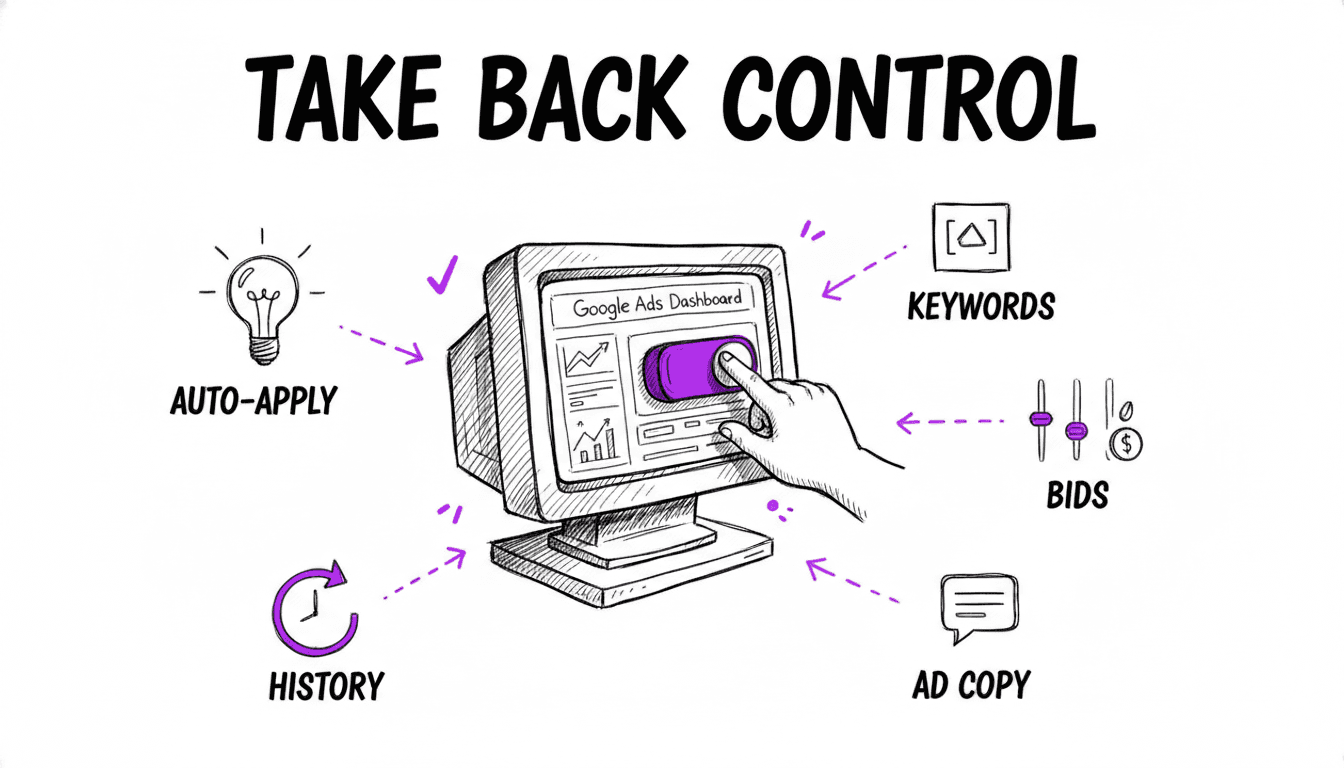
What Auto-Applied Recommendations Actually Are
Google Ads constantly analyzes your account and produces suggestions: add these keywords, switch to this bid strategy, rewrite this ad. Those suggestions live on the Recommendations page and feed your Optimization Score.
Auto-apply takes the next step. Instead of showing you a suggestion and waiting for your approval, Google implements it directly in your account. New keywords get added. Bid strategies get switched. Ad copy gets rewritten. Targeting gets widened.
You are not asked first. You find out afterwards, if you look.
That is the part most advertisers miss. Auto-apply is a per-account setting, and in many accounts some categories are already active before anyone deliberately switched them on.
When Auto-Apply Is Genuinely Useful
Let's be fair about this, because the honest answer is not "always off".
Auto-apply solves a real problem for a specific kind of account:
- Nobody is watching the account. A small business owner runs €600 a month, logs in twice a year, and has no agency. An automated fix for broken conversion tracking beats six months of silent data loss.
- There is no strategy to protect. If your account has one campaign, one ad group and a mixed bag of keywords, there is no structure for automation to damage. Google's suggestions may well be an upgrade.
- The account is brand new and starved for data. Early on, volume is the constraint. Broader targeting produces the search term data you need to make decisions later.
- Maintenance tasks nobody enjoys. Conversion tracking upgrades and removing keywords that never serve are chores, not strategy.
If that describes your situation, leaving a few maintenance-type recommendations on is a defensible choice. Automation beats neglect.
When Auto-Apply Works Against You
The moment your account has a deliberate structure, the calculation flips.
Say you built your account the way we describe in Perfect Google Ads Campaign Structure: keyword lists split into atomic building blocks, one ad group per keyword theme, match types separated into their own campaigns, individually written ads for every combination, negative keywords protecting the boundaries between campaigns.
Every one of those decisions is intentional. And every one of them can be undone by a recommendation that was applied while you slept.
Concrete examples of what breaks:
Broad match keywords get added to your Exact campaign. Your match type split was the mechanism that let you allocate budget by intent. Now Exact and Broad traffic sit in the same campaign and your performance data is mixed.
Your bid strategy gets switched. You ran Manual CPC or Target CPA at a number you calculated from your margins. Google raises the target because it sees headroom for volume. Your CPA follows.
Ad copy gets rewritten. You wrote headlines that mirror the exact keyword in each ad group, because that mirroring is what drives CTR and Quality Score. An auto-generated headline pulled from your landing page does not mirror anything.
"Redundant" keywords get removed. In a standard account, a duplicate keyword is waste. In a match-type-split account, the same keyword deliberately exists in Exact, Phrase and Broad campaigns. That is the design, and an automated cleanup reads it as an error.
Search partners or Display expansion get switched on. Your budget now goes to inventory you never chose to buy.
None of this is Google acting in bad faith. The recommendation engine optimizes for the goals it can measure across millions of accounts. It cannot see your margin structure, your brand guidelines, or the reasoning behind your account architecture. When your plan and the default assumptions disagree, the defaults win by being automatic.
What Can Be Applied Automatically
The exact list changes over time. As of , these are the categories Google groups under auto-apply.
Ads and assets
- Improve your Responsive Search Ads
- Add Dynamic Search Ads
- Use optimized ad rotation
Bidding
- Set or adjust Target CPA
- Set or adjust Target ROAS
- Switch to Maximize clicks, Maximize conversions or Maximize conversion value
- Target impression share
- Bidding strategy target adjustments
Keywords and targeting
- Add keywords
- Add broad match keywords
- Remove redundant keywords
- Remove non-serving keywords
- Remove conflicting negative keywords
- Add audience segments
- Expand reach with Google search partners
- Use targeting expansion
- Use Display expansion
Measurement
- Upgrade your conversion tracking
The list is not static. The "Add responsive search ads" recommendation, for example, stopped being auto-applied in January 2026. New types appear as Google ships new features, and a new type can arrive switched on. That is the reason this is a recurring check rather than a one-time fix.
How to Turn Off Auto-Apply: Step by Step
Set aside five minutes per account.
1. Open the Recommendations page
In Google Ads, go to Campaigns > Recommendations. In some accounts this sits behind the lightbulb icon in the left navigation.
2. Open the auto-apply settings
At the top of the Recommendations page, select Auto apply. You will see two tabs: Manage (what is currently active) and History (what has already been applied).
You can reach the same screen from Admin > Account settings, under the Auto-apply dropdown.
3. Review what is currently switched on
The Manage tab groups recommendations into two bundles: "Maintain your ads" and "Grow your business". Expand both. Anything with a checked box is live in your account right now.
Take a screenshot before you change anything. It documents what was active and gives you context when you review change history in step 6.
4. Uncheck what you do not want applied
There is no master off switch. You uncheck each recommendation type individually, or uncheck the bundle heading to clear everything inside it.
If you have a deliberate account structure, uncheck everything under Keywords and targeting and everything under Bidding at a minimum. Those two groups cause the damage that is hardest to reverse.
5. Save
Select Save. Disabled recommendations are marked with a red dot. Google keeps suggesting them on the Recommendations page, which is fine. Suggestions you can evaluate are useful. Changes applied without you are not.
6. Check what has already been applied
Now find out what changed before you got here.
Open the History tab inside the auto-apply screen to see which recommendations were applied, how often, and when. Then go to Admin > Change history, set the date range to the last 6 months and filter by change type.
Look specifically for added keywords you did not choose, bid strategy changes, and ad variations you did not write. Reverse anything that conflicts with your plan. Google Ads change history supports undo for many change types directly from the table.
7. Repeat for every account you manage
Auto-apply settings are configured per account. A manager account does not switch it off for the accounts below it. If you run 12 client accounts, that is 12 separate visits to this screen.
Rebuild the Structure Automation Flattened
If auto-apply widened your keywords and merged your match types, WonderAds regenerates the whole structure from your keyword lists: separate match type campaigns, one ad group per keyword theme, and an individually tailored ad for each one.
Which Ones Are Worth Keeping On
Switching everything off is the safe default, not the only reasonable answer. Two categories hold up well even in tightly managed accounts.
Upgrade your conversion tracking. This one fixes measurement rather than strategy. Broken or outdated tracking corrupts every decision you make downstream, and the fix is rarely controversial.
Use optimized ad rotation. If you already run a Smart Bidding strategy, ad rotation is largely academic. Serving the better performing ad more often is consistent with what you are trying to do anyway.
Everything touching keywords, match types, bids or ad copy belongs in your hands. Those are the levers that define your account, and reviewing a suggestion takes 30 seconds. Repairing an unwanted change takes considerably longer.
Keep It Off
Two habits keep this from resurfacing.
Check the auto-apply screen monthly. New recommendation types get added over time, and a new type can arrive enabled. A 60 second check per account is enough.
Scan change history whenever performance moves without explanation. A sudden CPC jump or a CTR drop with no campaign edits on your side is worth a look at Admin > Change history before you start diagnosing anything else.
Control Is the Point
Automation is not the problem. Automation applied to an account you deliberately designed, without asking, is.
Once auto-apply is off, every change in your account traces back to a decision someone made. Your keyword lists stay the ones you chose. Your match types stay separated. Your ads keep mirroring the search terms they were written for. When performance moves, you can explain why.
That visibility is what makes optimization possible in the first place.
Related Articles
- Perfect Google Ads Campaign Structure
- Google Ads Match Types
- Google Ads Bidding Strategies
- Negative Keywords in Google Ads
- Google Ads Campaign Launch Checklist
Build Accounts That Do Not Need Rescuing
Define your keyword lists once. WonderAds generates the campaigns, ad groups, keywords and individually tailored ads, then exports a single CSV for Google Ads Editor. Full structure, full control, minutes instead of days.
Get Started with WonderAdsRelated Articles
Negative Keywords in Google Ads: How to Stop Wasting Your Ad Budget
Stop paying for irrelevant clicks. Learn how to find, organize, and implement negative keywords in Google Ads to cut wasted spend and improve ROI.
Read article9 Best Google Ads Campaign Builders in 2026 (Compared)
We tested the top Google Ads campaign builder tools on the market. Here is our honest comparison with features, pricing, pros and cons to help you pick the right one.
Read articleGoogle Ads Account Structure: How to Build Your Account the Right Way
Learn the optimal Google Ads account structure with campaigns, ad groups, and keywords. Discover how proper organization lowers your CPC and improves Quality Score.
Read article